

Column name
required
The Column Name is the field name key that is pushed to the data destination.
Display label
optional
Display Labels are shown in the header row that users see during an import. Each Display Label internally maps to a Column Name: users see the Display Label inside the import widget, while the corresponding Column Name is pushed to the destination as the field name.
If no Display Label is specified, users see the Column Name by default. This lets you show a user-friendly label while pushing a column name that your app understands. For example, p_id can be the Column Name and Product ID the Display Label.
Info hint
optional
Info Hints are help tooltips that appear when users hover over (or click) the column name in the importer. Use them to convey additional information about the column.
Matching keywords
optional
Provide a set of keywords as alternative matching options to help users match column names automatically. For example, say you have a column named First Name. If many of your users have sheets with columns such as F_Name or simply First, add the two matching keywords F_Name and First. The importer then automatically matches columns to the specified keywords to speed up column mapping.
User keywords
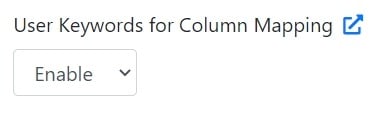
Apart from Matching Keywords, CSVbox auto-maps columns via continuous learning. The importer remembers the columns mapped by users and uses these historical mappings to automatically map columns for new uploads. This way the importer adapts and collects new User Keywords as more sheets are uploaded. You can view and delete User Keywords via Column Settings.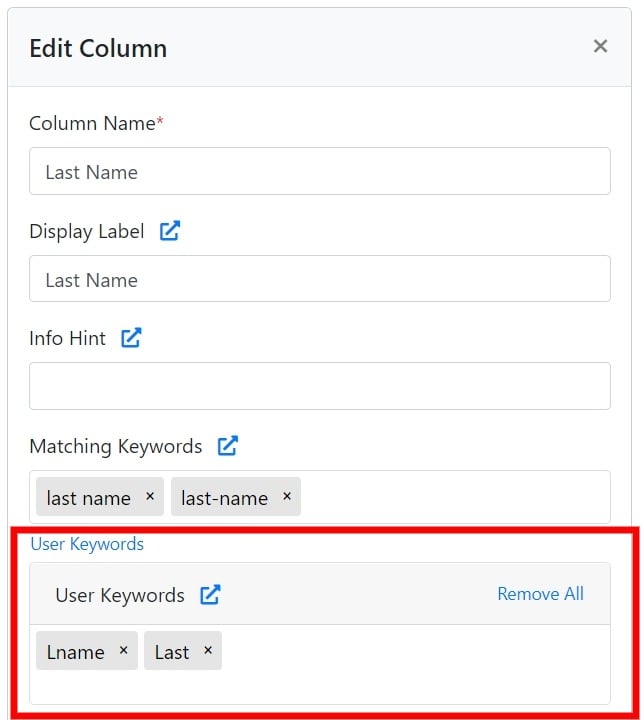
Default value
optional
Specify a default filler value for the column, used when the incoming data is blank.
Column type
required
Specify the data type of the incoming data and configure the relevant validation rules. Select the column type from the dropdown and set conditions for how the data should be formatted. See Validations for the available column types and validation options.
If the incoming data doesn’t match the column type (and its validation rules), the user sees an error message that identifies the problem and how to fix it. This ensures the data is clean and ready to use before it’s pushed to your app.
Required
optional
The Required checkbox indicates whether a column is mandatory. When it’s ticked, the importer validates the column for missing or empty data. If any cell in the column is empty, the user sees an error message.
Boolean columns that use Display as checkbox can’t be required. Enabling the option switches Required off.
Read only
optional
Enable this option to make the column read-only. The column data stays visible, but end users can’t edit it on the Verify Data step. For a Boolean column shown as a checkbox, the checkbox is disabled.