

1
Select Airtable as the destination
Select Airtable as the destination type.
2
3
Set the target table
Specify the table name where you want the data to be pushed.
4
Map columns
Map the sheet columns to the Airtable table columns. You can also map custom attributes to table columns.
Operations
There are 2 operations available for Airtable.1. Insert
Creates a new row in the table.2. Upsert
Updates an existing row if a specified value already exists in the table, and inserts a new row if it doesn’t. Select the column to check for uniqueness in the Column Mapping popup.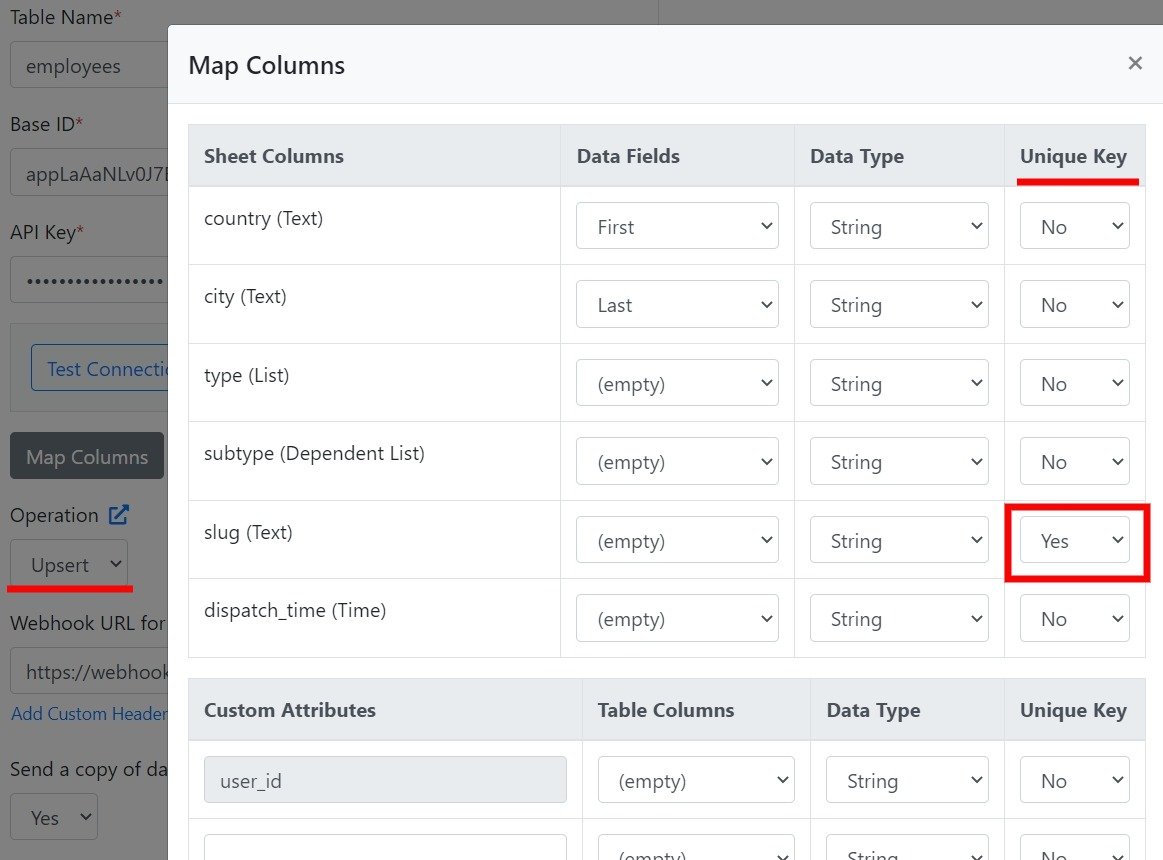
- If zero matches are found, a new row is created.
- If one match is found, that row is updated.
- If multiple matches are found, the request fails.