

How it works
1
Add a virtual column
For any sheet (template), add a virtual column in the CSVbox dashboard.
2
Attach a JavaScript snippet
Attach a JavaScript snippet to the virtual column.
3
Users submit the CSV file
After users submit the CSV file, the JavaScript runs to populate data in the virtual columns.
4
Data is pushed to the destination
Data from the uploaded CSV and the virtual columns is pushed to the data destination.
Example
- Merge
- Re-format
- Static
Merge data from the
first_name and last_name columns into a new virtual column named full_name.Here is the JavaScript attached to the full_name virtual column:Adding virtual columns
1
Open the Columns tab
Go to the edit sheet page → Columns tab, and click the Add Virtual Column button.
2
Name the column
Add the virtual Column Name.
3
Provide the JavaScript code
Enter the Javascript code.
4
Attach dependencies (optional)
Attach Dependent libraries.
5
Save the column
Click Save.
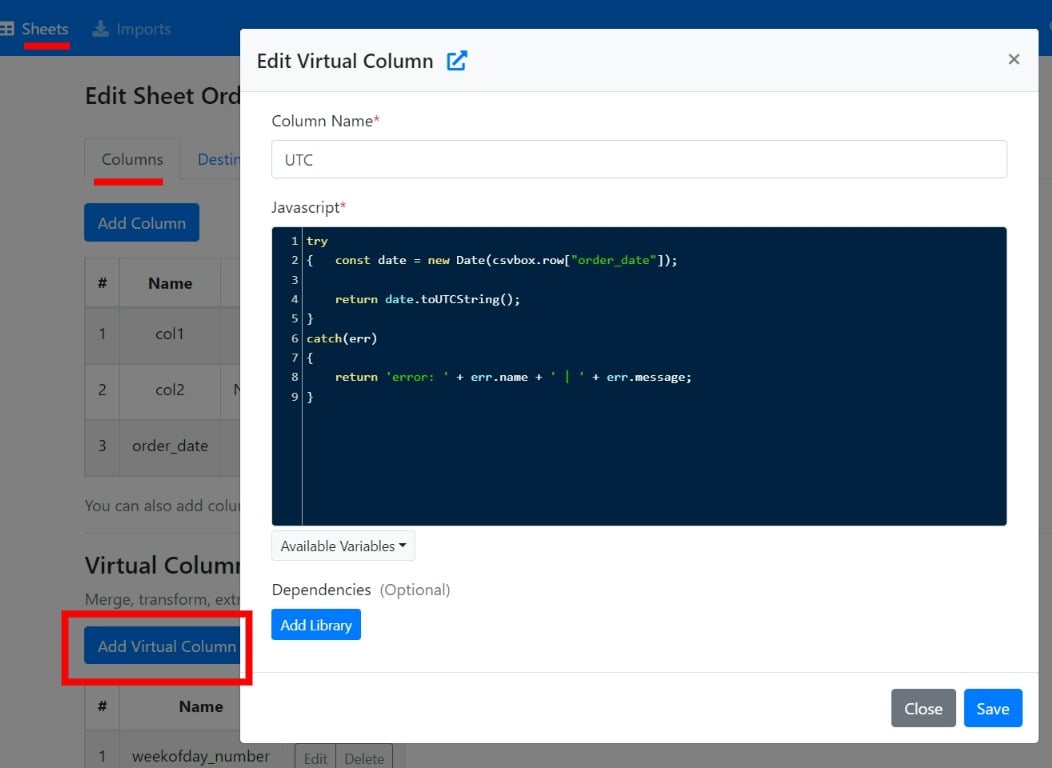
Add Virtual Column
Data rows
Data rows are the core object that virtual columns are built around. For each incoming CSV data row, you can read its data and manipulate it with JavaScript to populate the virtual column. After the user submits the CSV, the JavaScript runs for each data row in sequential order to populate the virtual columns. Use thecsvbox.row object to work with each row, and csvbox.row["column_name"] to read a specific column of the data row. You can use data from a single column, multiple columns, or no columns to populate virtual columns.
Inserting data into virtual columns
The value returned by the JavaScript snippet is added to the virtual column.If the JavaScript returns a
NULL value, an empty string is added to the virtual column.Receiving virtual data
Virtual column data is available at all data destinations along with the data from the regular columns.- API/Webhook, Zapier, etc.
- MySQL, Bubble, Airtable etc
- S3, FTP etc
In the API response JSON object, the virtual data appears inside the
_virtual_data object, as shown below. The _virtual_data object is visible only if virtual columns are added to the sheet. In the example below, check lines 12 and 31.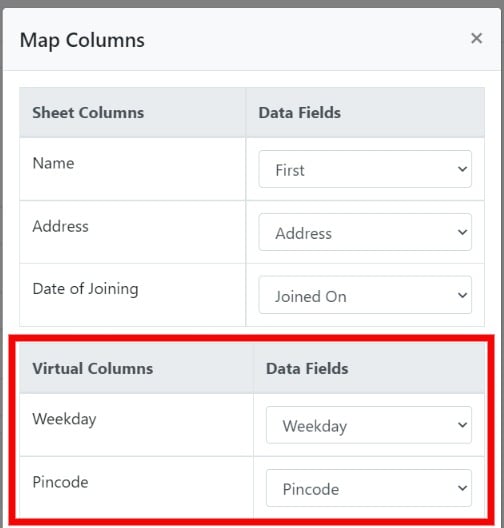
Dependencies
In the JavaScript snippet, you can use an external library hosted on a CDN. You can also call any external API endpoint to fetch real-time data. Add the library script tag and any custom scripts to the Dependencies section, then use them in the main JavaScript snippet. For each import, the dependent scripts run only once, whereas the main JavaScript snippet runs once for each row.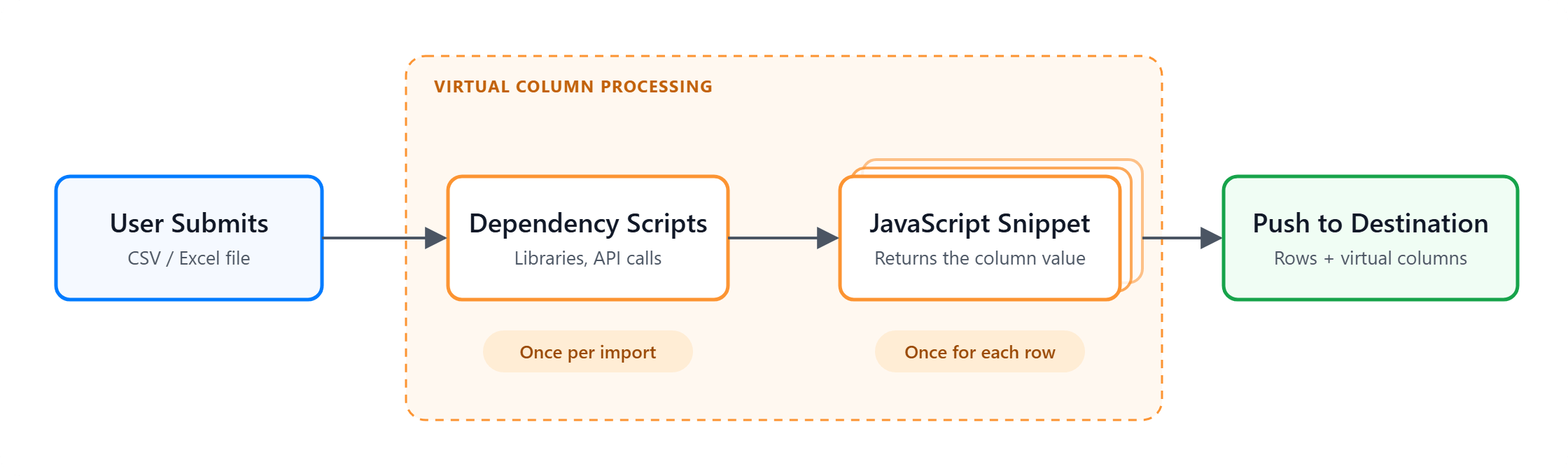
Virtual Column Processing
Example
Example
Suppose you want to use the data from the incoming Corresponding JavaScript snippet for the
USD_amount column to create a new GBP_amount virtual column. The amount should be converted from USD to GBP using real-time exchange rates.You can use the Money.js library for currency conversions and Open Exchange Rates to fetch real-time conversion rates. Here is the sample dependency code:Dependent Scripts
GBP_amount virtual column:Javascript snippet
Variables
In the virtual column JavaScript snippet, you have access to data variables in thecsvbox object. The following data is available: