

How it works
CSVbox sends the imported CSV data to your selected Pipedream workflow as soon as a user submits it. Each import becomes a new event in Pipedream, where you can process or forward the data to hundreds of apps.Example workflow
- A user uploads a CSV → CSVbox validates it and sends the data to Pipedream.
- The Pipedream trigger receives the event.
- The workflow inserts rows into a database, sends Slack alerts, or posts data to your API.
Setup instructions
1
Choose Pipedream as your destination
In your CSVbox Sheet Settings, select Pipedream as the destination and click Save.
2
Create a Pipedream trigger
- Log in to your Pipedream account.
- Create a new workflow.
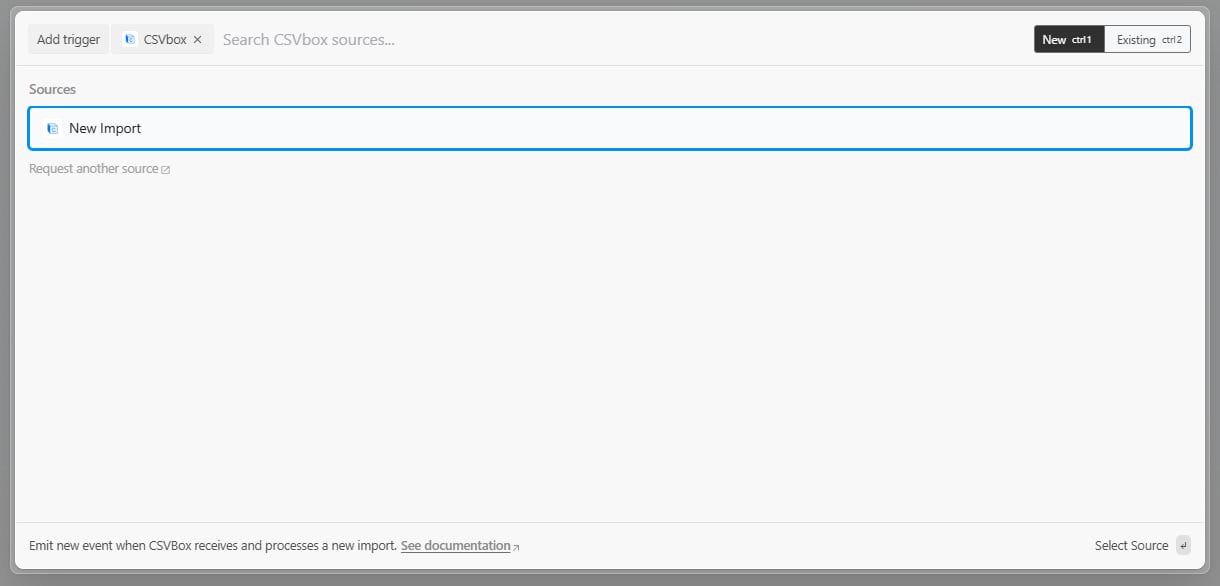
- When prompted to select a trigger source, choose CSVbox → New Import.
3
Connect CSVbox to Pipedream
In the trigger setup screen, paste your CSVbox API Key and API Secret Key. You can find these under CSVbox Dashboard → Account Settings → API Keys.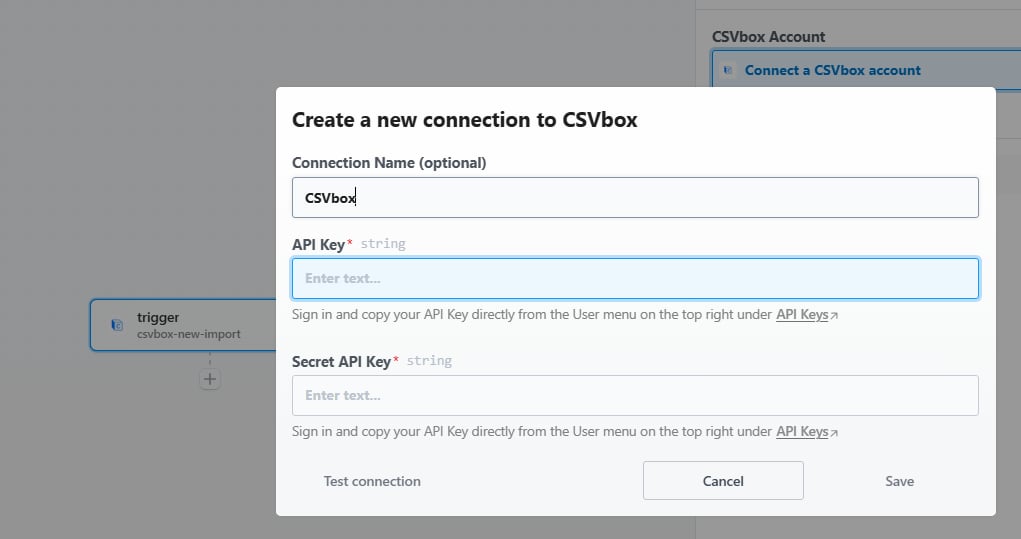
4
Select your sheet
In the Trigger Settings window in Pipedream, choose the Sheet Name you want to connect from the dropdown. Click Save and continue to confirm.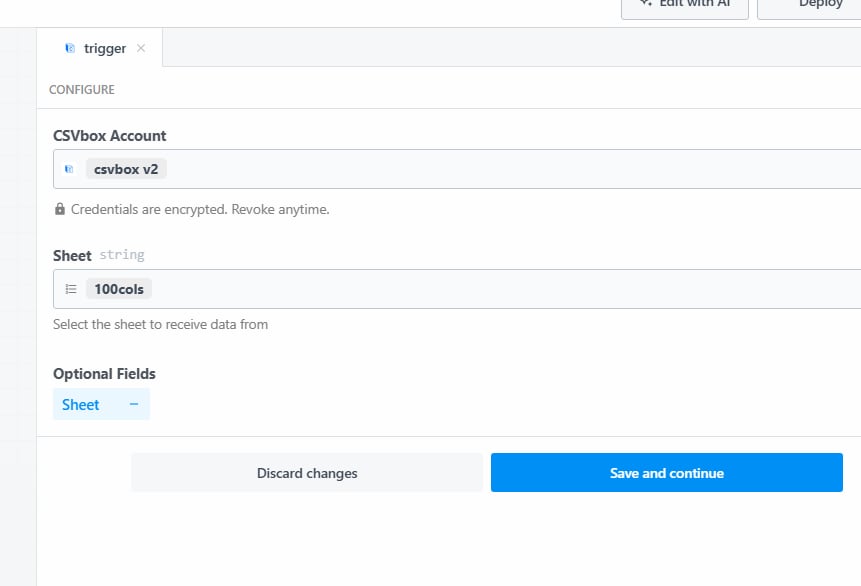
5
Verify the connection
Return to CSVbox → Sheet Settings → Destination. The Pipedream Connection now shows as successful.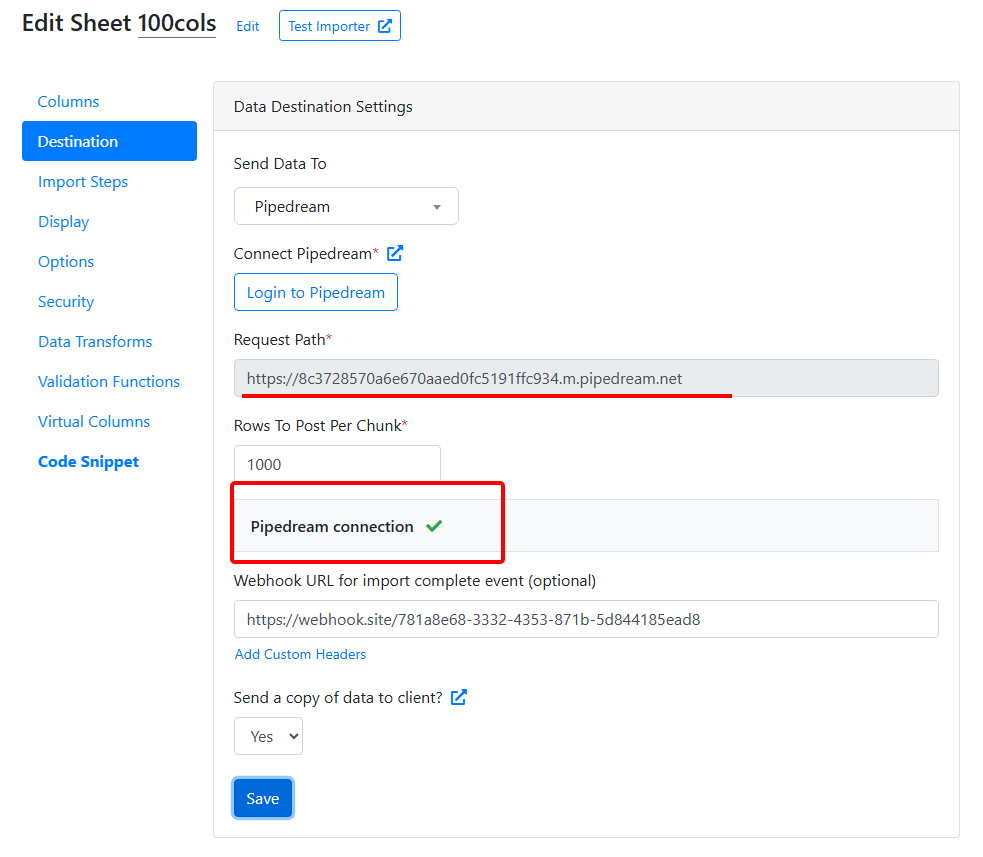
6
Test the importer
- Upload a sample CSV using your importer.
- Pipedream instantly receives the data as an event payload.
- You can view the incoming event in your Pipedream workflow’s Event tab.
After making changes in your Pipedream workflow (such as reconnecting CSVbox or editing the trigger), wait a few seconds before testing from CSVbox. It can take a short time for Pipedream to propagate configuration updates across their servers.
Common use cases
- Sync leads to your CRM (HubSpot, Salesforce, Pipedrive, etc.)
- Insert or update records in databases (PostgreSQL, MySQL, Supabase, Airtable)
- Send notifications on Slack, Discord, or Email
- Transform or enrich data before passing it to another service