
> For the complete documentation index, see [llms.txt](https://help.csvbox.io/llms.txt). Markdown versions of documentation pages are available by appending `.md` to page URLs; this page is available as [Markdown](https://help.csvbox.io/destinations/openapi.md).

# OpenAPI

## How it works

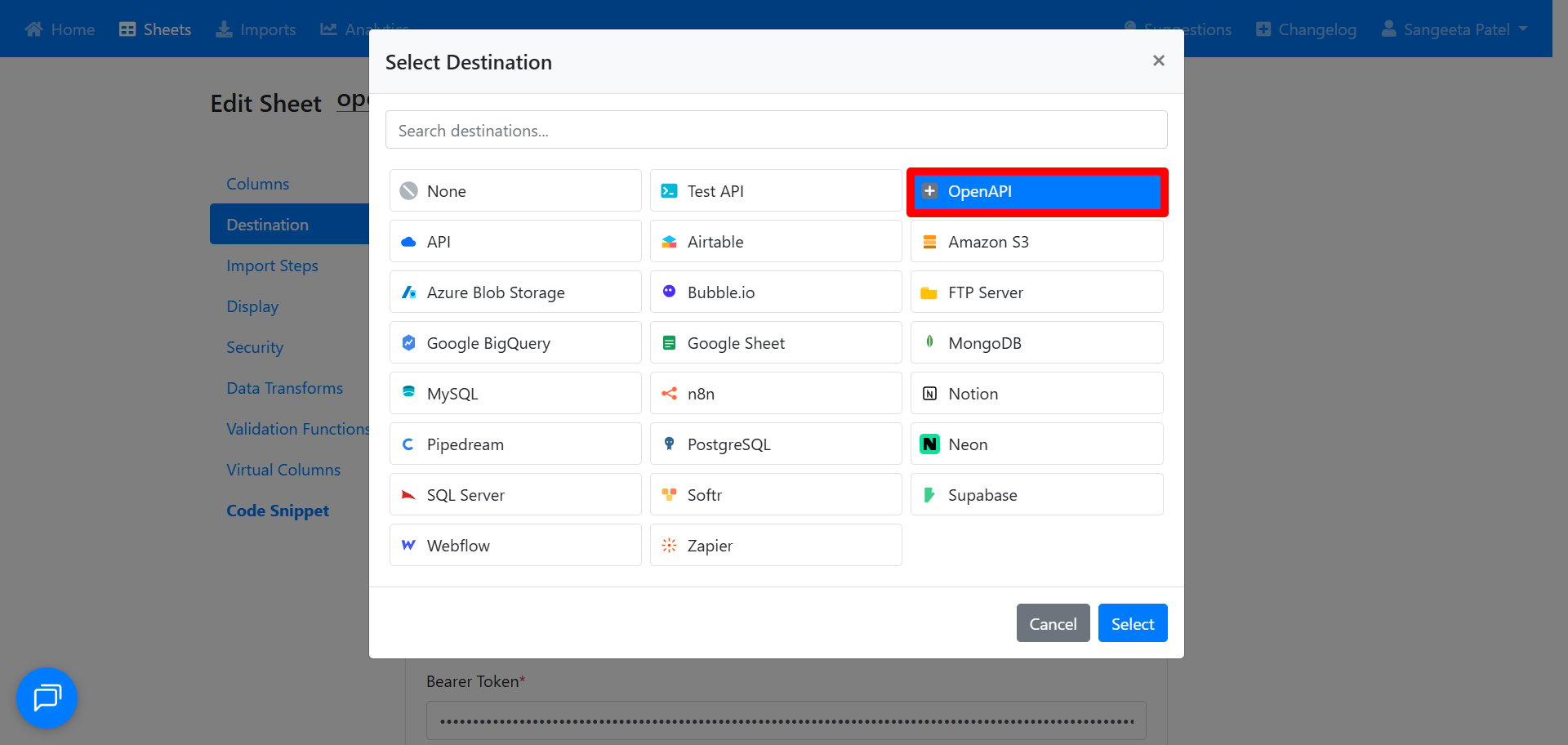
1. **Select the destination type as 'OpenAPI'.** Open your sheet, go to **Destination**, and choose **OpenAPI** from the list.<br>

   <figure><img src="/files/ZdzXZqQV0pBQC7JeILoO" alt=""><figcaption></figcaption></figure>
2. **Load the OpenAPI specification.** Paste the OpenAPI Specification URL (a link to the API's spec file) and click Load Specificatio&#x6E;**.** This pulls in the list of available endpoints.
3. **Select the endpoint.** Pick the endpoint you want to send data to (for example, `POST /v1/prices - Create Tiered Price`).
4. **Set the HTTP method.** Choose the method for the request, such as **POST** to create new records.
5. **Choose the authentication type.** Select how the API verifies you (for example, **Bearer Token**) and enter your credentials in the field that appears (e.g. paste your **Bearer Token**).
6. **Test the connection.** Click Test Connection. A green checkmark means your settings are correct.
7. **Map sheet columns to the endpoint fields.** Match each column in your sheet to the matching field expected by the API. You can also map custom attributes.
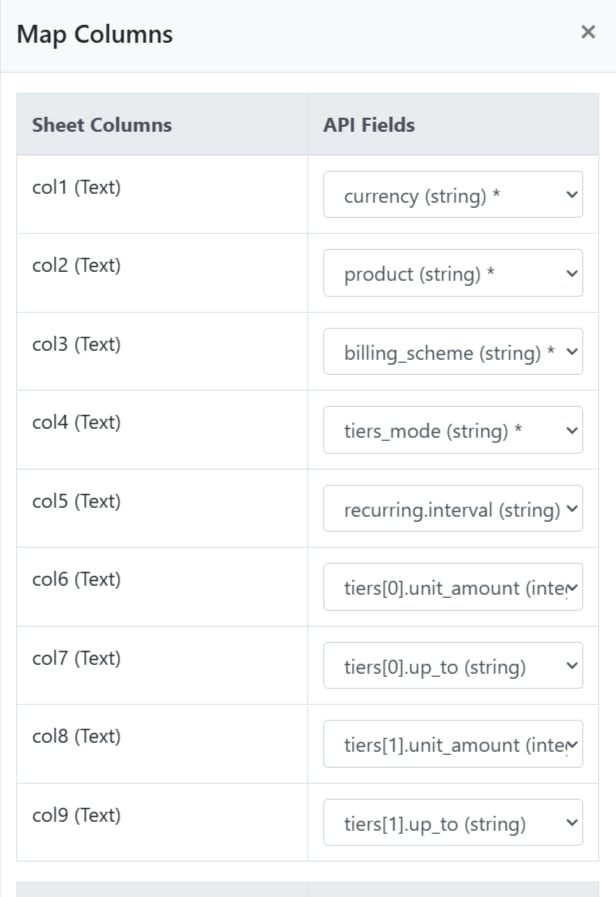
8.

```
<figure><img src="/files/3o70B35bK848xD6XibHT" alt=""><figcaption></figcaption></figure>
```

9. Once set up, your sheet data will be sent to the API endpoint, one request per row.

## Example

This example shows how to test the **OpenAPI** destination end to end, for free, using a temporary inbox. You'll send sheet data to a test URL and watch it arrive live. Once it works, you simply swap in a real API.<br>

### What you'll use

* **webhook.site** — a free service that gives you a temporary URL and shows every request it receives. This stands in for a "real" API so you can see your data arriving.
* **GitHub Gist** — a free place to host your OpenAPI spec file so the destination can load it from a URL

### Step 1 - Get your test URL

Go to **webhook.site**. It instantly shows a unique URL at the top, like:

```
https://webhook.site/abc-123
```

Leave this tab open. Every request you send will appear here in real time.

### Step 2 - Create the spec file

Go to **gist.github.com** and create a new gist. Paste in the spec below, replacing the `servers` URL with **your** webhook.site URL from Step 1.

```json
{
  "openapi": "3.0.0",
  "info": { "title": "Test API", "version": "1.0" },
  "servers": [{ "url": "YOUR WEBHOOK URL" }],
  "paths": {
    "/": {
      "post": {
        "summary": "Send Row",
        "requestBody": {
          "content": {
            "application/json": {
              "schema": {
                "type": "object",
                "properties": {
                  "name": { "type": "string" },
                  "email": { "type": "string" }
                }
              }
            }
          }
        },
        "responses": {
          "200": { "description": "OK" }
        }
      }
    }
  }
}
```

### Step 3 - Configure the destination

In your sheet, go to **Destination** and set it up:

| Field                     | Value                                                |
| ------------------------- | ---------------------------------------------------- |
| Send Data To              | **OpenAPI**                                          |
| OpenAPI Specification URL | your **Raw** gist URL → click **Load Specification** |
| Select Endpoint           | `POST / - Send Row`                                  |
| HTTP Method               | `POST`                                               |
| Authentication Type       | **None**                                             |

Then click **Test Connection**.

> **Why "None"?** webhook.site accepts anything, so there's no token to provide. Leaving authentication on "Bearer Token" with an empty token is the most common reason the test fails.

### Step 4 - Map your columns

Match each column in your sheet to a field in the API:

| Sheet column | API field |
| ------------ | --------- |
| Name         | name      |
| Email        | email     |

### Step 5 - Import and watch it work

Upload a small CSV with a couple of rows. As the import runs, switch to your webhook.site tab — each row appears as its own incoming POST request, with the data inside it.

That confirms the whole loop is working.