

- Row Functions: run validation on each row of data and return an error message (if any) for the user. They run at the beginning of the “validate” step, and again whenever row data is updated during the “validate” step. For example, use a row function to mark a cell as “mandatory” based on a specific value in another cell in the same row.
- Column Functions: run validation on a set of selected columns when the user clicks the Submit button on the “validate” step. They’re best for cases where the entire column’s data is required for validation. For example, to find duplicate entries in a column, grab all the values in the column, find the duplicates, and display a message to the user.
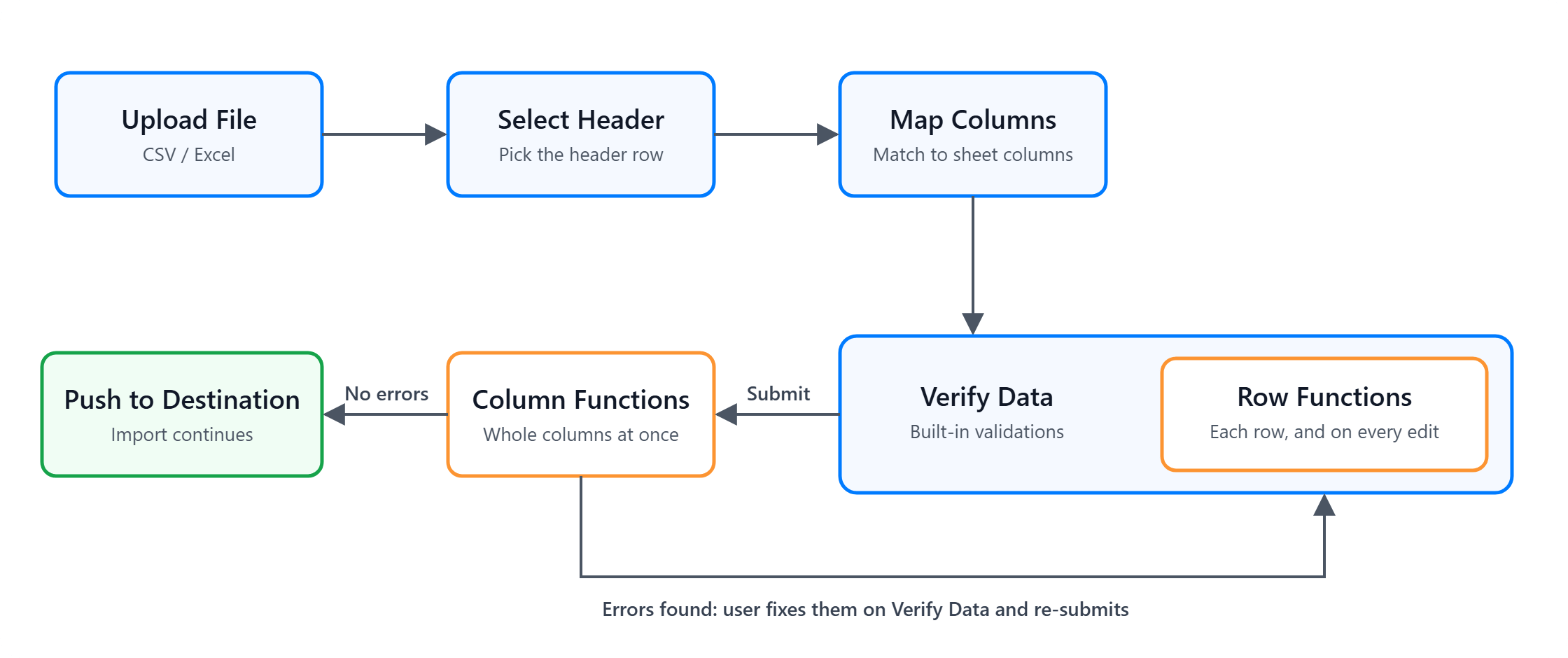
Validation Functions
Row functions
Adding row functions
1
Open the Columns tab
Go to the edit sheet page → Columns tab, and click the Add Functions button.
2
Name the function
Add a Function Name.
3
Select the Row function type
Select Row under Function Type.
4
Provide the JavaScript code
Enter the Javascript code.
5
Save the function
Click Save.
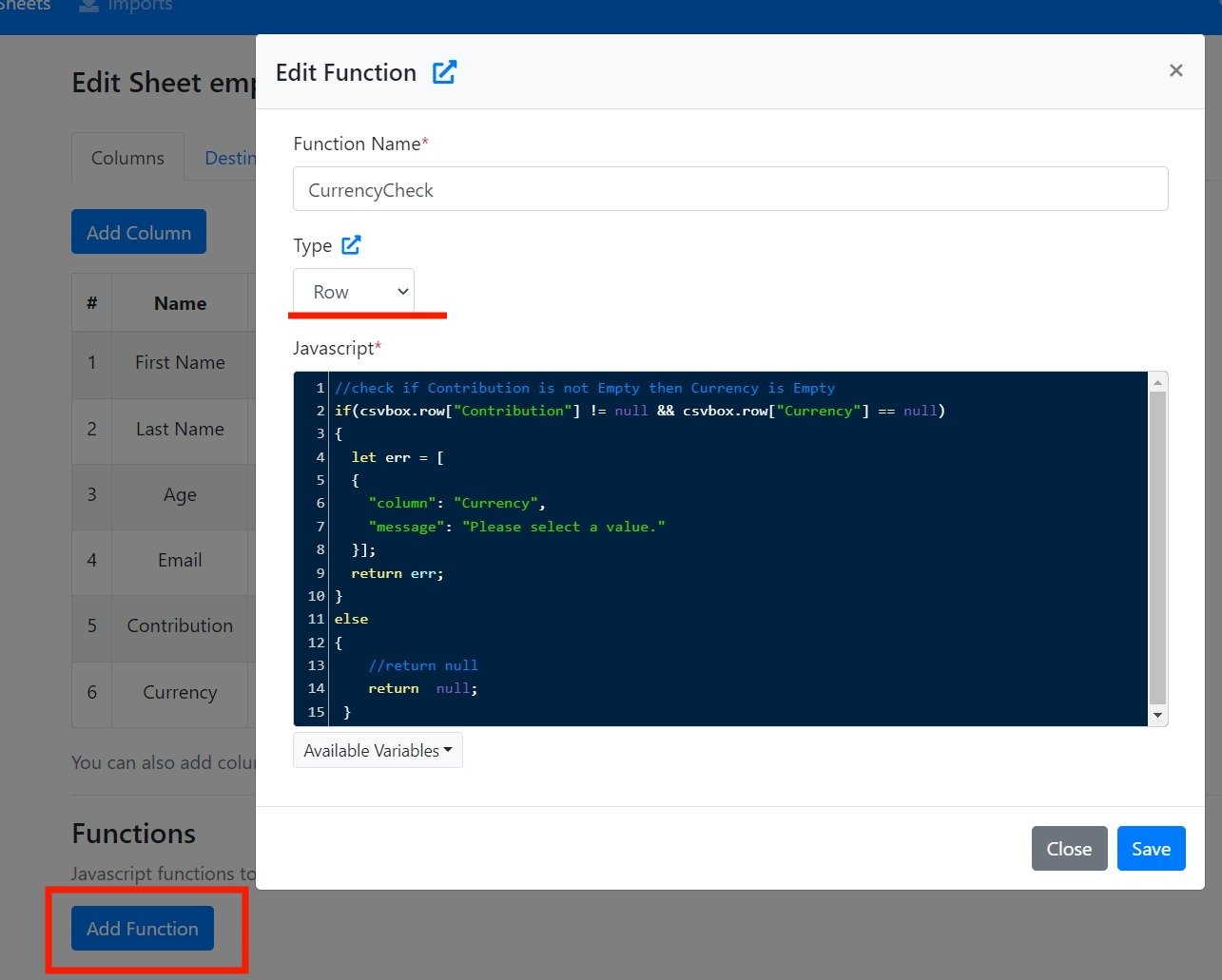
Adding Row Functions
Example row functions
Dependent columns
Column 5 is mandatory only if column 4 is not null.Mandatory column combination
Either column 2 or column 3 needs to have data.Variables in the row function
You have access to data variables in thecsvbox object. The following data is available:
csvbox.row
Contains the row data. Access each cell in the row by providing the column name. Examples:
csvbox.user
Contains the custom user attributes defined while initializing the importer. Examples:
csvbox.import
Contains data specific to the current import. The following data is available:
csvbox.columns
Contains the column metadata (name, type).
csvbox.environment
Contains the environment variables passed during importer initialization.
Error response JSON format for row functions
CSVbox expects the row function to return an array of errors. Each error specifies thecolumn the error appeared in and a message to display in the UI.
JSON response schema
Example row function JSON response
Column functions
Adding column functions
1
Open the Columns tab
Go to the edit sheet page → Columns tab, and click the Add Functions button.
2
Name the function
Add a Function Name.
3
Select the Column function type
Select Column under Function Type.
4
Add the columns
Add the columns you need in the function.
5
Provide the JavaScript code
Enter the Javascript code.
6
Attach dependencies (optional)
Attach Dependent libraries.
7
Save the function
Click Save.
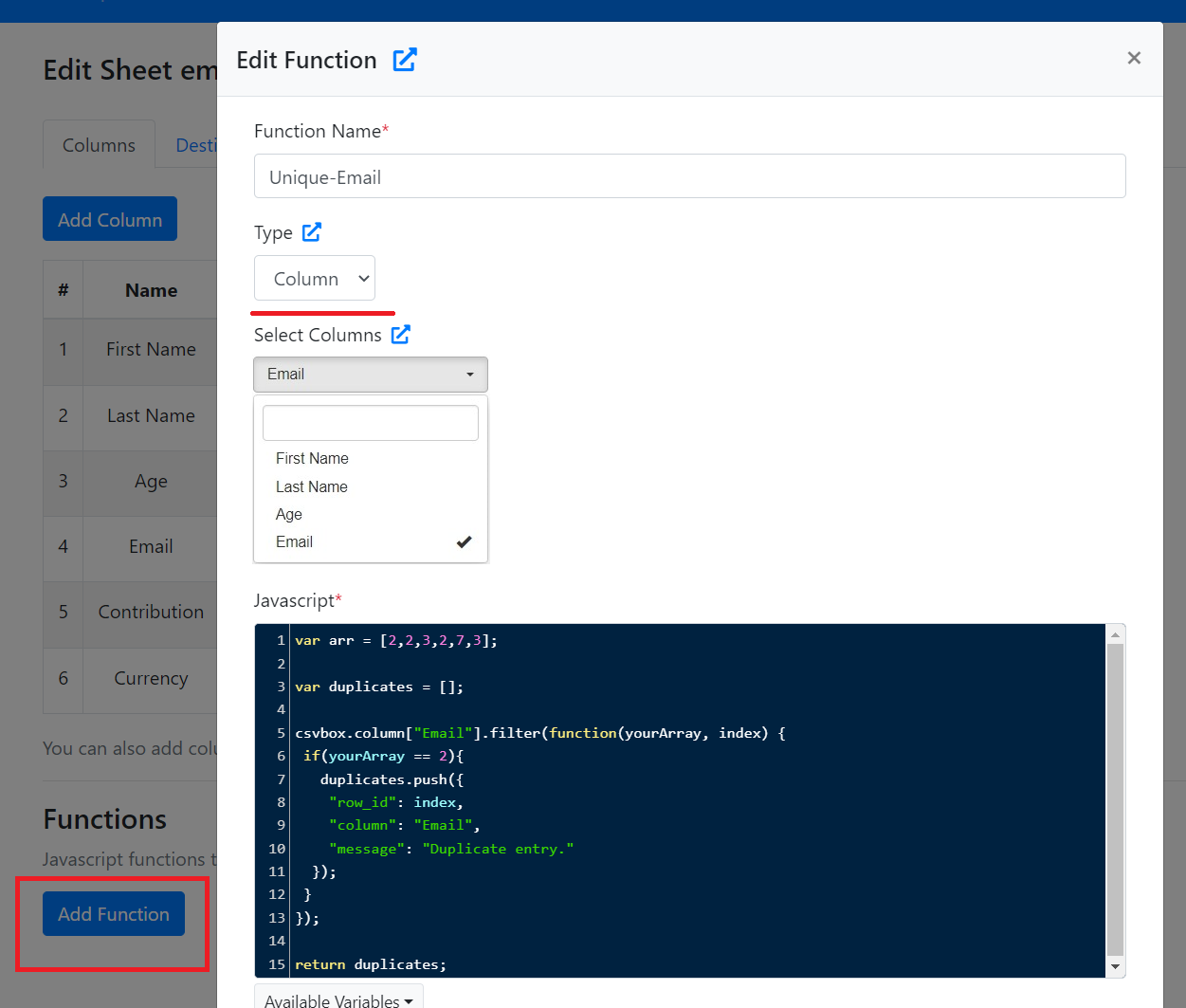
Adding Column Functions
You can also enter dynamic column names to access them in validation functions.
Example column functions
- Detect Duplicates
- Multi Column Duplicates
Check whether a column has duplicate entries.
Dependencies
In the column function JavaScript snippet, you can use an external library hosted on a CDN. You can also call any external API endpoint to fetch real-time data. Add the library script tag and any custom scripts to the Dependencies section, then use them in the main JavaScript snippet.Variables in the column function
You have access to data variables in thecsvbox object. The following data is available:
csvbox.column
Contains the entire column’s data. Access each cell in the column by providing the column name and the row number. The row number starts with 1. Examples:
csvbox.user
Contains the custom user attributes defined while initializing the importer. Examples:
csvbox.import
Contains data specific to the current import. The following data is available:
csvbox.environment
Contains the environment variables passed during importer initialization.
csvbox.columns
Contains the column metadata (name, type).
Error response JSON format for column functions
CSVbox expects the column function to return an array of errors. Each error specifies therow_id, the column the error appeared in, and a message to display in the UI.